
How to Build Targeted Lead Lists With a Prospecting API
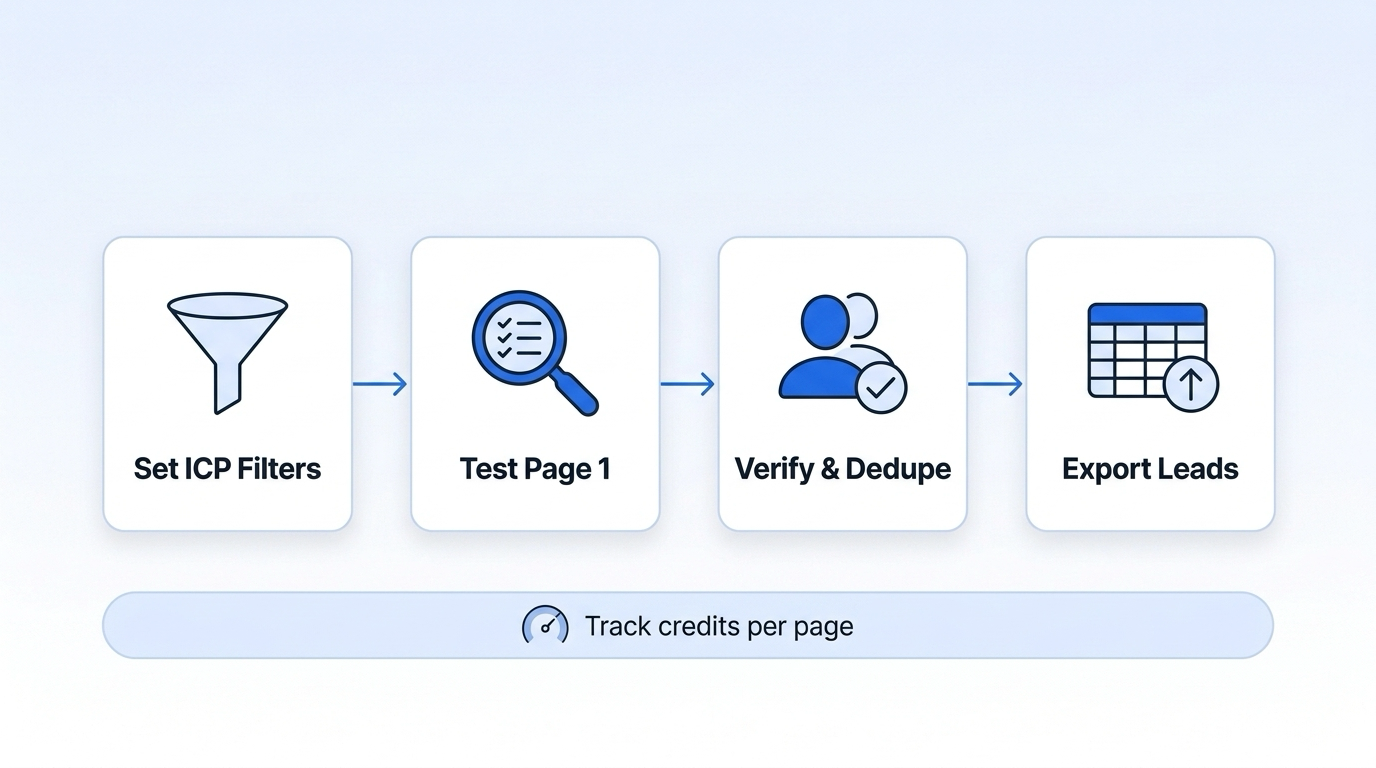
I build targeted lead lists by turning an ideal customer profile into API filters, checking the first page, and exporting only qualified records. For sales leaders at U.S. SaaS companies, I start with supported software, title, location, and headcount filters. Datamagnet’s 51–200 employee band excludes companies with exactly 50 employees.
Here’s my workflow:
- Test the search: Review 10–25 records before pulling more pages. At 10 credits per page, five search pages cost 50 credits.
- Check each lead: Confirm current roles and company fit, remove duplicates, and track pages, errors, and credits.
- Prepare the export: Map fields to CSV or CRM columns and separate accepted records from those needing review.
- Check outreach eligibility: Validate business contact details and apply customer, opt-out, and other suppression lists.
I save the filters, checks, and export rules for future runs. The rule I keep in mind: a matching profile isn’t an outreach-ready contact - both checks matter.
1. Set ICP Filters and Run a Search
Choose Company and Contact Filters
Call GET /api/v1/people-search/filters, then match your ICP to supported company filters: industry, employee band, and location. Don’t assume SaaS is an accepted industry label. Choose a supported software industry value from the current filter reference.[2][3]
For contacts, set job title, seniority, and function. Start with title variants such as Head of Sales, VP Sales, and Vice President of Sales, paired with seniority values like CXO, Vice President, and Director. Use suggestions to match a title to a supported value when needed.[2][3][9]
Keep company and contact locations separate. A company’s United States headquarters doesn’t mean its contacts work there. Add a contact location filter only if your outreach criteria call for it.[2][3]
Send an Example API Request
Before running this example, check the endpoint, field names, bounds, values, and page_size against the current Datamagnet documentation. Datamagnet lists headcount ranges such as 51-200, not a generic 50-200 value.[2][3][8]
curl --request POST \
  'https://api.datamagnet.co/api/v1/people-search/search' \
  --header "Authorization: Bearer ${DATAMAGNET_API_KEY}" \
  --header 'Content-Type: application/json' \
  --data '{
    "industry": ["Software Development"],
    "company_headcount": ["51-200"],
    "company_location": ["United States"],
    "job_title": ["Head of Sales", "VP Sales", "Vice President of Sales"],
    "seniority": ["CXO", "Vice President", "Director"],
    "function": ["Sales"],
    "page": 1,
    "page_size": 25
  }'
Save the request timestamp, endpoint version, and exact payload. Also save available response details: request ID, pagination data, applied filters, warnings, and credit usage.[2]
For fit checks and deduplication, keep the person ID, name, title, seniority, location, and profile URL, plus the company ID, company name, domain, company location, industry, and employee count.[2]
Use the first page as your baseline before spending more credits.
Review the First Page and Set a Credit Limit
Review the first 10–25 records for contact fit, company fit, and geography. Flag consultants, former employees, sales operations roles, and adjacent categories for review.[2][3][9]
Before continuing, check the current documentation and your available credits. ICP people search costs 10 credits per page. Filter discovery and credit checks cost 0 credits; suggestions cost 1 credit per request.[2][3][9]
Set a page or credit cap for this lead-list build. A five-page cap reserves up to 50 search credits. Reuse the first page you reviewed rather than paying to request it again. This is a core principle of building an enrichment cache layer to manage costs.[2][3]
Once the baseline looks relevant, add supported hiring, funding, or engagement signals one at a time. Compare the result count and fit after each change.[2][3]
If the first page matches your ICP, move on to pagination and record-level checks.
2. Retrieve Pages and Check Lead Records
Handle Pagination, Retries, and Stop Conditions
Once the first page looks relevant, work through the results until you reach your lead target or credit cap. Datamagnet’s live ICP search starts at page: 1. Read pagination.page, pagination.count, and pagination.total, track credit_used, and archive the raw responses.[1][2]
The loop should skip duplicates and stop when the results run out or the budget is spent.
filters = saved_filters_without_page
response = first_page_response
spent = response["credit_used"]
seen_pages = set()
seen_ids = set()
retrieved = 0
accepted = 0
status = "incomplete"

while True:
    meta = response["pagination"]
    page = meta["page"]

    if page in seen_pages:
        break
    seen_pages.add(page)

    archive_raw(response, retrieved_at=utc_now())

    for record in extract_records(response):
        record_id = record.get("profile_url") or record.get("linkedin_url") or record.get("entity_urn")
        if record_id and record_id in seen_ids:
            continue
        if record_id:
            seen_ids.add(record_id)
        validate_and_upsert(record)
        accepted += 1

    retrieved += meta["count"]

    if accepted >= lead_target:
        status = "target_reached"
        break
    if meta["count"] == 0 or retrieved >= meta["total"]:
        status = "exhausted"
        break
    if len(seen_pages) >= page_cap or spent >= credit_cap:
        status = "capped"
        break

    params = {**filters, "page": page + 1}
    response = fetch_with_retry(params)
    if response is None:
        break
    spent += response["credit_used"]

save_checkpoint(status, seen_pages, seen_ids, spent)
For a 422 error, review filter_errors, then fix the filter values or retry with partial: true. For a 504 error, narrow the filters and rerun the search.[2][7]
Verify Current Roles and Company Fit
Check is_current and company_id to confirm the contact still works at the target account. For this U.S. SaaS example, verify that the company is in the United States and has 51–200 employees. That range excludes companies with exactly 50 employees. A software industry label alone also doesn’t prove the company uses a SaaS business model.[2][3]
Use started_on, tenure_years, and tenure_months as context for recency - not as proof that the role is current. Save request_id and any filter_errors so you can explain why a record was accepted, rejected, or flagged for review.[2]
Standardize Fields and Remove Duplicates
Normalize spacing and casing, then remove duplicates using stable IDs such as profile_url, linkedin_url, or entity_urn. This keeps reruns from counting the same lead twice in your outreach list.[2][5][7] Keep the cleaned records ready for export.
3. Prepare and Export the Lead List
Map Filters to Export Columns
After cleaning and deduplicating the records, define a stable CSV or CRM schema. Map each returned field to its export column explicitly. The CSV schema doesn’t need to mirror the API.
person_id,company_id: text identifiers.full_name,company_name: display names.job_title,seniority: role fields.profile_url: normalized reference URL.company_domain: lowercase domain.industry,employee_count,company_location: company qualification fields.
For this sales-leader example, qualification depends on industry, employee count, company location, job title, and seniority.
Store employee_count as an integer, but leave it blank if the count isn’t exact. Use match_reason for the qualification summary, retrieved_at for a timezone-aware ISO 8601 timestamp, and source_status for the record state.[11]
Write validated records to accepted_leads.csv. Put rejected and unresolved records in review_queue.csv, including person_id, company_id, failure_reason, failed_field, raw_value, source_status, and reviewed_at. Use separate statuses such as accepted, rejected, unresolved, or review. Check column mappings before bulk import.
With the schema in place, treat profile qualification and outreach eligibility as separate checks.
Check Outreach Readiness and List Quality
An accepted profile isn’t ready for outreach yet. Get business contact details through supported enrichment workflows, validate those details, and retain email_status, email_verified_at, and enrichment_source.[10][12] Before activation, apply suppressions for customers, open opportunities, opt-outs, bounces, and excluded accounts. Log who exported the file.
Save a run log that records the filters used, pages retrieved, accepted leads, duplicates removed, unresolved records, and credits consumed. Keep enough detail to audit the run and repeat the workflow with the same filters.
Calculate two run-level quality measures:
- Accepted leads per page = accepted leads ÷ pages retrieved.
- Credits per accepted lead = credits consumed ÷ accepted leads.
Use the actual credits charged for the credit calculation. If no leads qualify, report zero accepted leads and mark credits per accepted lead as unavailable.
Conclusion: Save and Rerun Your Lead List Workflow
After your first export, save the workflow as a reusable runbook. Keep versioned copies of the ICP definition, validated filter values, API request, acceptance rules, pagination settings, deduplication keys, and export mappings.
For each rerun, follow the saved steps in order. Reuse the filters, or update them if your ICP changes. Check fit on page 1 before spending more credits.
Before outreach, revalidate current roles and company qualification. Many LinkedIn prospecting tools can automate this verification step. Deduplicate the updated results against CRM records, apply the latest suppression list, and route uncertain matches for review. Export only records that pass the saved rules.
Frequently Asked Questions
How can I confirm a software company is actually SaaS?
Use the Technology filter in the ICP Company Search endpoint to find tools or tech stacks associated with SaaS businesses. The industry filter covers broader categories, such as Software Development. Check each company’s description in the results to confirm its business model explicitly.
For automated validation, use /api/v1/people-search/filters to see supported technology values and industry mappings.
Which filters should I loosen if too few leads qualify?
Start by broadening company size ranges or adding more seniority levels [1][2]. Filters use AND logic, so remove filters you don’t need or add options within an existing array, such as industries or locations, to increase lead volume [3][4].
For specific job titles, include broader variations or use the function filter instead [5][2]. Keep core firmographic filters to a minimum so you don’t exclude good accounts based on criteria that don’t predict fit [6].
How often should I refresh my lead list?
Update firmographic filters, such as company headcount or industry, every quarter [1]. Contact data decays steadily as people change jobs and companies, so static lists lose accuracy fast.
Job titles and email addresses go stale fastest. Pair quarterly updates with continuous monitoring, such as job-change alerts or funding updates, to spot changes in real time instead of waiting for your next manual update [3][1].
