
How to Use a Data Enrichment API to Update CRM Records
I use a people enrichment API to fill approved CRM gaps - not overwrite every field. I start with a 10–50 record pilot, confirm each person and company match, and update existing records by ID. This follows a thorough CRM data audit to identify which fields actually need attention.
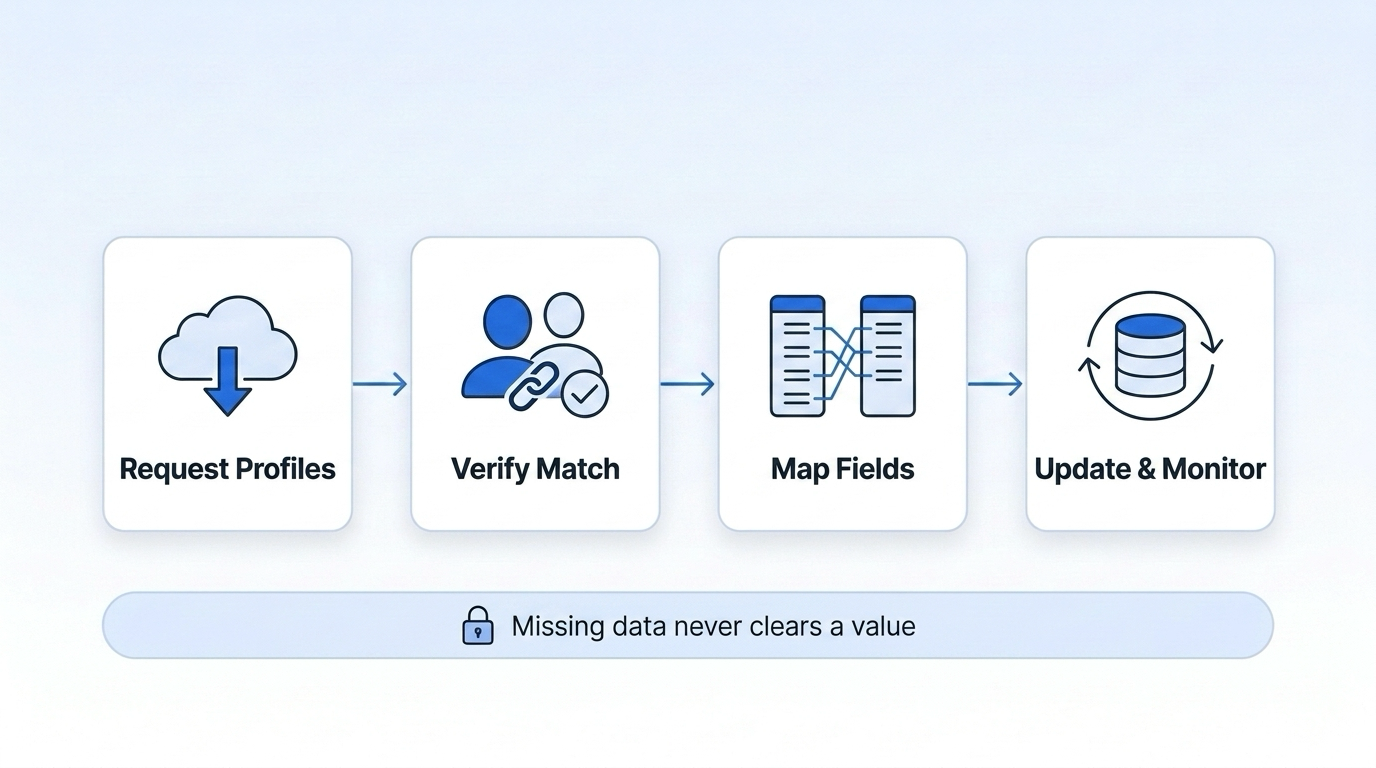
Here’s the process I follow:
- Connect to Datamagnet and the CRM using securely stored API keys.
- Check returned data, resolve duplicate matches, and map fields to the right CRM records.
- Fill approved blanks, preserve verified values, and send conflicts for review. Missing data never clears an existing value.
- Run a dry run, submit approved changes, and check what the CRM saved.
- Track errors, retries, and credits before scheduling updates or using webhooks.
The rule I follow throughout: a successful API request does not prove the CRM update is correct.
1. Set Up Access and Request Enrichment Data
Check API Access and CRM Permissions
Start with a 10–50 record pilot that includes blank, partial, and trusted records. Check matching and field mapping before working with larger batches.[3] Validate one record, one match, and one update at a time.
| Prerequisite | What to confirm |
|---|---|
| Datamagnet API key | Generate a key in the dashboard for bearer authentication.[1][2] |
| CRM credentials | Grant only the read and update permissions needed for the selected objects and fields. |
| Existing record IDs | Attach each CRM ID to the request and returned payload. |
| Person identifiers | Collect LinkedIn profile URLs and work emails. The documented person request uses a LinkedIn profile URL as its primary input.[4][5] |
| Company identifiers | Collect company domains or LinkedIn company URLs, and check the current parameter name in the live company endpoint documentation.[6] |
| Fields you can update | Confirm access to job title, employer, company size, industry, location, and profile URL. |
Keep credentials in a secrets vault or encrypted environment variables - not source code or CRM fields. Use HTTPS, keep development and production credentials separate, and redact authorization headers from logs.
Before sending requests, check Datamagnet credits and API limits. Throttle batches to stay within those limits. Once access is ready, retrieve the person and company profiles for each CRM record.
Request Person and Company Profiles
The documented person request uses POST /api/v1/person with a url parameter. This quick-start example injects DATAMAGNET_KEY at runtime.[4][7]
curl --request POST 'https://api.datamagnet.co/api/v1/person' \
  --header "Authorization: Bearer ${DATAMAGNET_KEY}" \
  --header 'Content-Type: application/json' \
  --data-raw '{"url":"https://linkedin.com/in/pratik-dani"}'
For company profiles, use POST /api/v1/company with bearer authentication and JSON content. Check the current parameter name in the live docs before building the request body.[6] Each successful person or company request costs 1 credit; optional enrichments cost extra.[4][5][6]
Request optional person-enrichment flags only when you need the added data. The documented flags are company_interest, group_interest, school_interest, and newsletter_interest. They're off by default and cost an additional 2 credits when successful.[5]
Check the returned fields to verify the match before writing anything to the CRM.
Review Complete and Partial Responses
Check HTTP success and field completeness separately. Complete responses may include full_name, job_title, current_company_name, company_size, industry, location, and profile_url. Partial responses leave some fields null, missing, or unknown.[5]
Use this JSON as a missing-field check, not as a real response.
{
  "job_title": null,
  "current_company_name": null,
  "company_size": null,
  "industry": null,
  "location": null,
  "profile_url": null
}
If a match is empty or a request fails, leave the CRM unchanged and log the result separately from partial responses. Optional enrichment fields may contain an error object even when the base profile succeeds, so check those fields too.[5]
Save the raw response, CRM ID, source URL, request timestamp, and credits used. Mark each field as returned, missing, or failed. A live retrieval timestamp doesn't prove when a title changed.[4] Keep missing values empty until the mapping rules approve them.
In the CRM mapping step, use these field statuses to compare the returned data with the existing record and map only approved values.
2. Verify Matches and Map CRM Fields
Verify Contact and Company Matches
Confirm the match before mapping any fields. Check the returned profile and CRM ID, then use the field statuses from retrieval to decide which values are safe to map.
Trim whitespace from email addresses and convert them to lowercase. Normalize profile URLs by removing tracking parameters while preserving the path. A normalized email or profile URL, paired with matching employer data, supports a high-confidence match. Use name, job title, and location only as supporting signals.
Check for duplicates across both contacts and leads. If a record shares an identifier with another record, send it for review instead of updating it automatically. Store proposed changes with the record IDs, match evidence, current value, proposed value, decision, and review status.[8][9][10][11]
Move to field mapping only after confirming the match.
Map Response Fields to CRM Fields
Map each response key directly to its CRM field, keeping both the raw value and any normalized value. Link the employer to an existing company ID. Do not rename the company through a contact update.
| Datamagnet response field | CRM destination | Data type | Transformation | Overwrite rule |
|---|---|---|---|---|
person.job_title | Contact title | String | Trim whitespace; preserve the wording | Fill blanks or replace stale values under policy |
person.company.name | Employer or account relationship | String or record ID | Normalize the company name and resolve it by canonical domain | Review changes to a verified employer |
company.employee_range | Company size | Enum/string range | Map to an approved CRM range and preserve the range value | Fill blanks or replace stale provider data under policy |
company.industry | Company industry | Picklist/string | Map source labels to the CRM taxonomy | Replace only with an approved mapping |
person.location | Contact or company location | Structured address/string | Parse conservatively and preserve international formats | Update supported components with sufficient confidence |
person.profile_url | Contact profile URL | URL | Normalize scheme, host, path, and tracking parameters | Replace only with a valid, better-confirmed URL |
Store company size on the matched company record. Never put a headcount range into an exact-number field.
For U.S. records, use en-US formatting, such as city, state abbreviation, and ZIP code. Do not force international addresses into U.S. state or ZIP fields. Keep the original location when parsing is uncertain.
Apply these rules before building the update payload.
Set Rules for Replacing Existing Values
Make update decisions field by field, not for the response as a whole. Use freshness as a replacement signal - not proof that an existing value is wrong. Record the source, retrieval timestamp, previous value, and decision reason. Retrieval time tells you the source and timing, not whether a field is valid.
| Existing state or returned value | Update policy |
|---|---|
| Blank CRM field; valid, approved value returned | Fill the blank |
| Stale, unverified CRM value; stronger evidence returned | Replace only under source and freshness policy |
| Trusted or manually verified CRM value | Preserve unless an authorized reviewer approves replacement |
Missing, blank, or null response field | Leave unchanged |
| Same normalized value | Skip |
| Conflicting identity, unsupported format, or incompatible range | Route the affected field for review; log the reason |
Send only approved fields in the update payload. Omit blank or null fields, and do not clear populated CRM fields based on partial responses.
3. Update Records and Monitor the Sync
Once fields are mapped and approved, write only validated values to the matched CRM record.
Test and Submit Existing-Record Updates
Start with a dry run. Check CRM IDs, person-to-company matches, required fields, associations, data types, picklist values, and confidence thresholds. Before submitting, use optimistic concurrency where available. Otherwise, re-read the record just before writing so you don’t silently overwrite someone else’s edits.
Illustrative CRM requests - not Datamagnet endpoints. These partial updates target existing IDs. Endpoint paths, object names, association syntax, and field names vary by CRM schema. A partial update should contain only fields that passed matching, validation, and overwrite rules; omitting a field helps prevent accidental replacement.
PATCH /crm/objects/contacts/123456
Authorization: Bearer <CRM_ACCESS_TOKEN>
Content-Type: application/json

{
  "properties": {
    "jobtitle": "Vice President of Sales",
    "associatedcompanyid": "789012"
  }
}
PATCH /crm/objects/companies/789012
Authorization: Bearer <CRM_ACCESS_TOKEN>
Content-Type: application/json

{
  "properties": {
    "numberofemployees": "250",
    "industry": "Software"
  }
}
Track contact and company updates separately. For each update, log the record ID, field, approved value, and enrichment timestamp. After a partial success, re-read the record to confirm which fields were applied.
Handle Errors and Prevent Repeat Updates
Retry only transient or rate-related errors. After a timeout or 5xx, check the CRM’s current state before trying again. For retryable failures, use exponential backoff with jitter - for example, delays of about 1, 2, 4, and 8 seconds.[13]
| Condition | Action |
|---|---|
| Missing match | Skip and queue for review. Do not create a record. |
| Partial success | Apply only fields that meet validation and confidence rules. Keep other CRM values unchanged. |
| Duplicate candidates | Select automatically only when the match rule returns one unambiguous result. Otherwise, require review. |
| Invalid value | Normalize the value, map it to an allowed CRM option, or reject it with a clear reason. |
| Credential or permission error | Stop the affected job and alert an administrator. |
Rate limit (429) | Honor Retry-After, reduce concurrency, and retry within limits. |
Timeout or transient 5xx | Check the existing state, then retry unresolved changes only. |
| Retry limit reached | Move the failure to a review queue. |
Use these error codes and retry outcomes to tune the next scheduled run.
Schedule Syncs and Track Results
Set the schedule around business needs. Check high-value employment changes more often, and review stable company attributes monthly or quarterly. Every refresh must use the same matching, mapping, and overwrite rules. Exclude recently enriched records and estimate credits before each run.
Link field history to its batch, and limit operational logs to error categories and request IDs. Track records and fields changed, failed requests, duplicate warnings, protected-field skips, retries, credits consumed, and post-sync corrections.
For automated refreshes, switch from scheduled syncs to event-driven updates.
If your plan includes Datamagnet alerts or webhooks, use them to trigger targeted updates. Verify the source with supported authentication controls, deduplicate event IDs, and process queued events asynchronously. Datamagnet requires a 2xx acknowledgment within 10 seconds and retries unsuccessful deliveries up to three times.[12] Queue each event first, then apply the same matching and overwrite rules.
Conclusion: Repeat the Validated Update Process
Use the same validated workflow for every sync. Track errors, duplicates, rate limits, and credit use. A successful API request does not prove the CRM update is correct.
Before expanding the sync, run a small, read-only dry run. Review the proposed changes before allowing writes. Expand only when match accuracy meets your threshold, protected fields remain unchanged, error handling passes testing, and credit usage stays within budget.
Document these rollout criteria and stop expanding if any fail. Treat enrichment as a repeatable control process - not a one-time cleanup.
Frequently Asked Questions
How can I undo an incorrect CRM update?
Use your enrichment logs to find the affected record and restore its previous values. Your audit trail needs timestamps, providers, updated fields, and previous values so you can trace each change.
To reduce errors, write enrichment data to shadow fields first. Then move those values into primary fields only when those fields are empty or contain different values. Set clear write rules - for example, never overwrite data a human edited within the last 30 days.
How do I measure enrichment accuracy before scaling?
Start with a controlled pilot for one high-value workflow, such as inbound lead routing. Use view-only mode to compare proposed API updates against existing CRM data without overwriting anything. Track match rate, useful-field rate, accept rate, how current the data is, and sales outcomes.
Set a confidence threshold and route weak matches for review rather than updating records automatically. Log results and errors to see where the pipeline needs tuning before scaling.
